ApneaFlow user guide
ApneaFlow ·
Guide
How to use ApneaFlow as a freediving instructor or student: accounts, plans, trainings, the calendar, Weekly Plans, Timeline, personal bests and settings.
About ApneaFlow
ApneaFlow keeps a freediving instructor’s whole training week in one place: trainings, personal plans, and what each student says afterwards. It replaces the text files, notes apps and chat threads most instructors use today. It is free, and it is built by a freediving instructor around how instructors already plan.
The app speaks the sport’s own language. Plans follow the familiar structure of dry work, warm-up, main set and cool-down, and can be tagged by discipline: dyn, dynb, dnf, sta, CO₂ and acidose. Every plan is free text, so you write a set exactly as you would on paper.
Who it is for
- Instructors who run pool, dry or open-water trainings and coach several students, in person or online.
- Students training with one or more instructors, or on their own.
What you can do with it
| Use case |
How it works |
| Run a weekly pool session |
Create the training once. Students book themselves, or you add them. Each booked student gets their own plan for that day. |
| Plan individually, quickly |
Write a plan for each student, or write one and copy it to several booked students. Each copy can then be adjusted on its own. Reusable lines from your task library save retyping. |
| Set homework between trainings |
Give a student a Weekly Plan: a short checklist for the week. They tick each task and say which day they did it, and you see the ticks. |
| Coach students remotely |
Mark a student as online. They get plans and Weekly Plans, never trainings, and their feedback works the same way. |
| Close the loop after training |
Students get a reminder to leave feedback, and you can answer with a comment. To-do shows which plans are still to write, so nothing slips. |
| See how a student is progressing |
A student’s profile shows every plan, feedback and comment between you, plus their own self-directed sessions. Their Timeline adds personal bests and video links. |
| Record personal bests and videos |
Add a personal best or a video link to a student’s Timeline, or to your own. A best a student adds waits for their instructor to confirm it. |
| Train on your own |
A student without an instructor can log sessions with the same plan editor, and plan their own week with a Weekly Plan. When they join an instructor later, their history comes with them. |
| Take the plan to the pool |
Print any plan, or all the plans for a training at once. |
| Keep your own record |
Students can download all their plans, feedback and comments as a text file. Instructors can export a student’s history the same way. |
Every training runs one loop, from booking to feedback
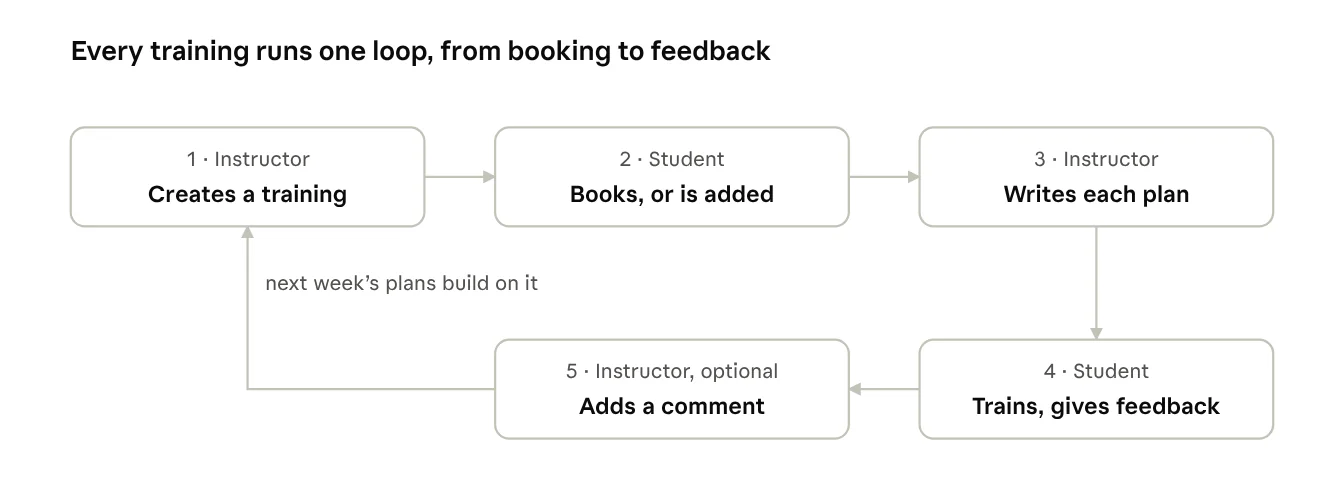
Online students skip steps 1 and 2: their instructor writes plans on dates of their choosing. Students training alone write their own plans and feedback.
Welcome to ApneaFlow
Here is how to get an account. ApneaFlow works in any browser, on a phone as well as a laptop.
| You are… |
How you get an account |
| A student invited by an instructor |
Open the one-time link in your invite email, set a password, accept the privacy policy. You are connected to that instructor at once. No second confirmation email. |
| A student training on your own |
Choose Sign up on the login page, then confirm your email address from the message we send. You can log your own training straight away. |
| A student who already has an account |
Open the new instructor’s invite and sign in. Your account connects to them, and everything you logged before stays yours. |
| An instructor |
Instructor accounts are invite-only. If nobody has referred you, go to Contact, pick Instructor access, and tell us about your certification and students. We reply with an invite. |
One account can hold both roles: an instructor who also trains under another instructor sees both sides in the same app.
Words used in this guide
- Training: a session an instructor schedules, such as a pool training on Wednesday at 19:00.
- Plan: what one student does on a given day. Every plan belongs to exactly one student.
- Feedback: the student’s note after training.
- Comment: the instructor’s optional note on a student’s training.
- Disciplines:
dyn (dynamic with fins), dynb (bi-fins), dnf (no fins), sta (static). Personal bests also cover CWT (constant weight) and FIM (free immersion).
- Weekly Plan: a short checklist for one Monday-to-Sunday week, set by an instructor or written by the student. It used to be called Week to-do.
- Timeline: one person’s season on one line, newest first: plans, personal bests and video links.
- Personal best (PB): a student’s best result in one discipline, typed in by the student or their instructor. It is never read from plan text.
Instructors: getting started
Once you have accepted your instructor invite, invite your students. You can write their first plan as soon as they accept.
Finding your way around
| Menu item |
What it is for |
| Dashboard |
Your next trainings, how many plans you still owe, and Latest feedback from students. |
| Calendar |
Your week: trainings, bookings and plans, day by day. |
| Timeline |
Each student’s season day by day: plans, personal bests and videos. Pick one student or All students. |
| Students |
Your students, your open invites, and each student’s profile. |
| To-do |
Plans still to write, soonest training first. |
| Weekly Plan |
Weekly checklists you set for your students. |
| Library |
Your saved tasks for writing plans faster. |
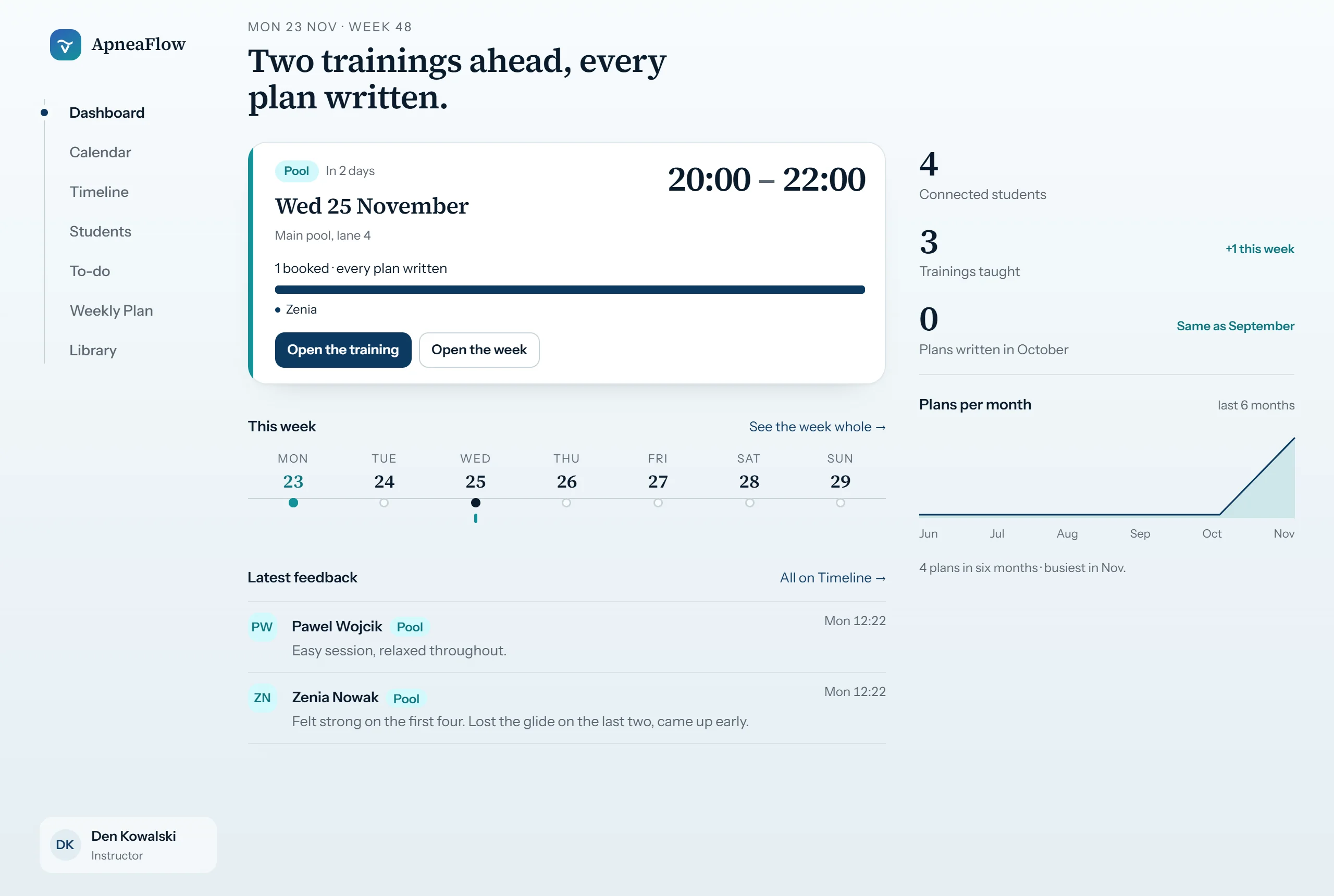
On a phone Home, Calendar, Weekly Plan and To-do sit in a bar at the bottom, and Home lists the students who are behind on this week’s Weekly Plan. The + button starts a new training or a new plan, and your avatar opens the full menu, including Students, Timeline and Library.
Inviting a student
- Go to Students.
- Under Invite a student, enter their email address.
- Choose In person or Online, plans only.
- Select Send invite.
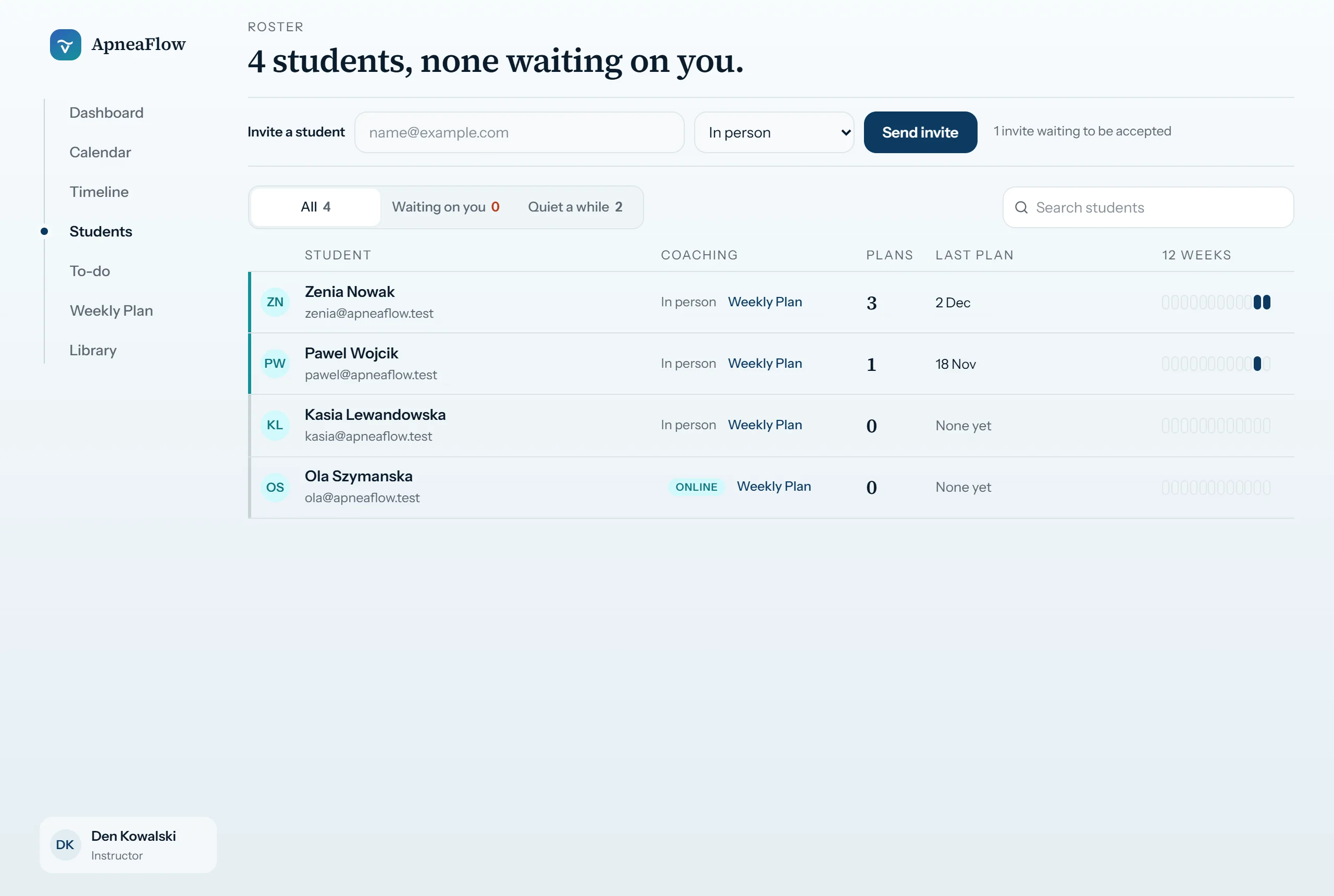
A message confirms whether the email went out. If it shows Delivery failed, check the address and send again. Your open invites are listed under invites waiting to be accepted, and Revoke cancels one.
If the student already has an ApneaFlow account, accepting connects them to you. They keep everything they logged before.
In person or online?
- In person: the student sees your trainings, can book them, and gets a plan for each.
- Online, plans only: you work with the student through plans and Weekly Plans. The student never sees your trainings and can’t be booked onto them.
You can switch either way later on the student’s profile. Switching to online cancels their upcoming bookings on your trainings. Their plans stay on the same dates.
Instructors: writing plans
A plan is free text for one student on one date. Only Main is required. ApneaFlow keeps your line breaks, numbering and indents exactly as you type them.
The parts of a plan
| Part |
Use it for |
| Notes |
What the student reads beforehand: the focus or an explanation. |
| Dry |
Land work: breathing and warm-up out of the water. |
| Warm Up |
The in-water warm-up. |
| Main |
The main set. Required. |
| Cool Down |
Easing off at the end. |
After the training the student adds Feedback and you can add a Comment. Both sit on the same plan.
Writing a plan
- Start from any of these places:
- Write plan next to a booked student on a training in the Calendar
- Add plan on a day in the Calendar, or New plan at the top
- Write a coaching plan on a student’s profile
- Under Who is it for, pick the student, then set the Date and Plan type (Pool, Dry or Open water).
- Optionally add Tags for what the plan trains: DYN, DYNB, DNF, STA, CO₂, Acidose.
- Fill in the parts you need.
- Select Save plan to send it to the student, or Save as draft to keep it to yourself. Students never see drafts. When a draft is ready, open it and select Send to student.
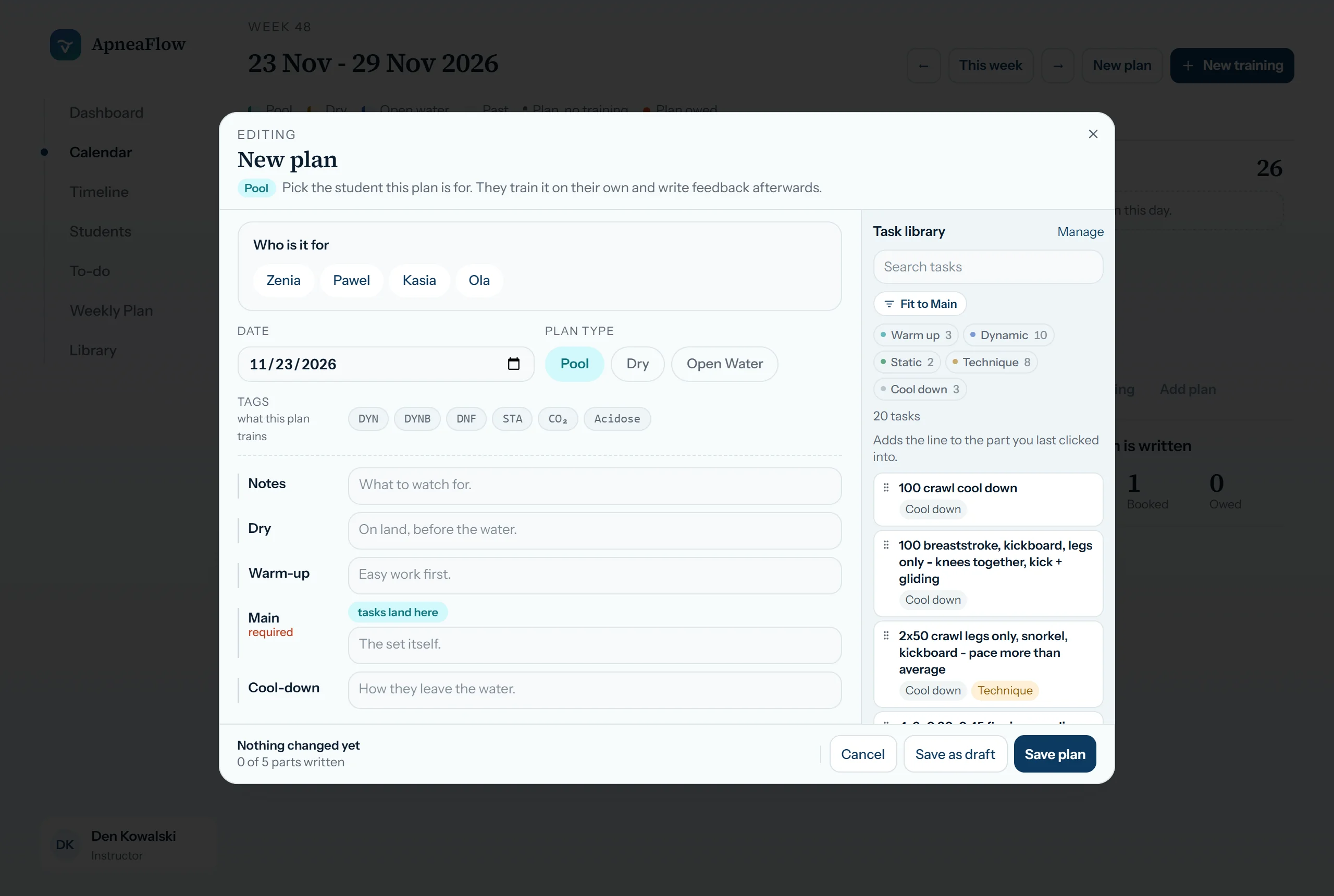
A plan written on a training can go to several booked students at once. Each student gets their own copy. Editing one copy later doesn’t change the others.
Copy, paste and print
- Copy plan on any plan you’re viewing, then Paste plan in the next plan you write. Paste replaces every part of that plan and copies its tags. The date and the student are not copied, and nothing is saved until you save.
- Print opens a printable PDF of the plan. Print on a training prints the plans for everyone on it. Each printed card carries a short freediving quote down its right edge.
- Copy link copies a direct link to the plan.
The task library
The library holds lines you write often, such as 4 × 50 m dyn, 2:00 rest, so you don’t have to type them each time.
- Go to Library and select New task.
- Enter the line exactly as it should appear in a plan. Add a description and tags if they help you find it. The description stays in your library and never goes into a plan.
- While writing a plan, the task pane lists your tasks. Search or filter by tag, then drag a task into a part. You can also click into a part and then click the task to add it there.
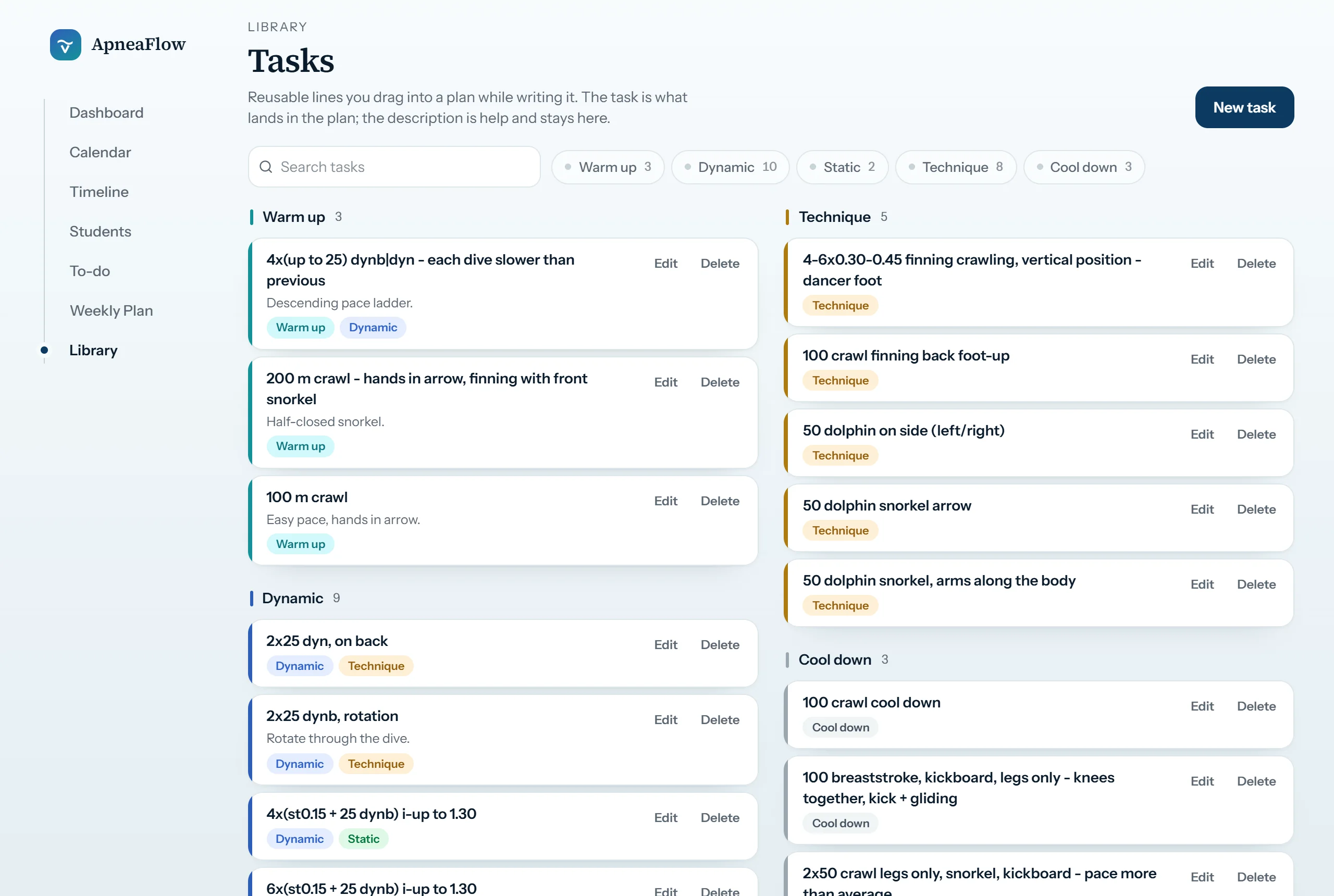
Your library is private. Nobody else can see it, including your students.
Instructors: trainings and the calendar
The Calendar shows one week at a time, with a card for each day holding its trainings and plans in time order. The last card sums up the week, including any plans you still have to write. Use the arrows to move between weeks and This week to come back.
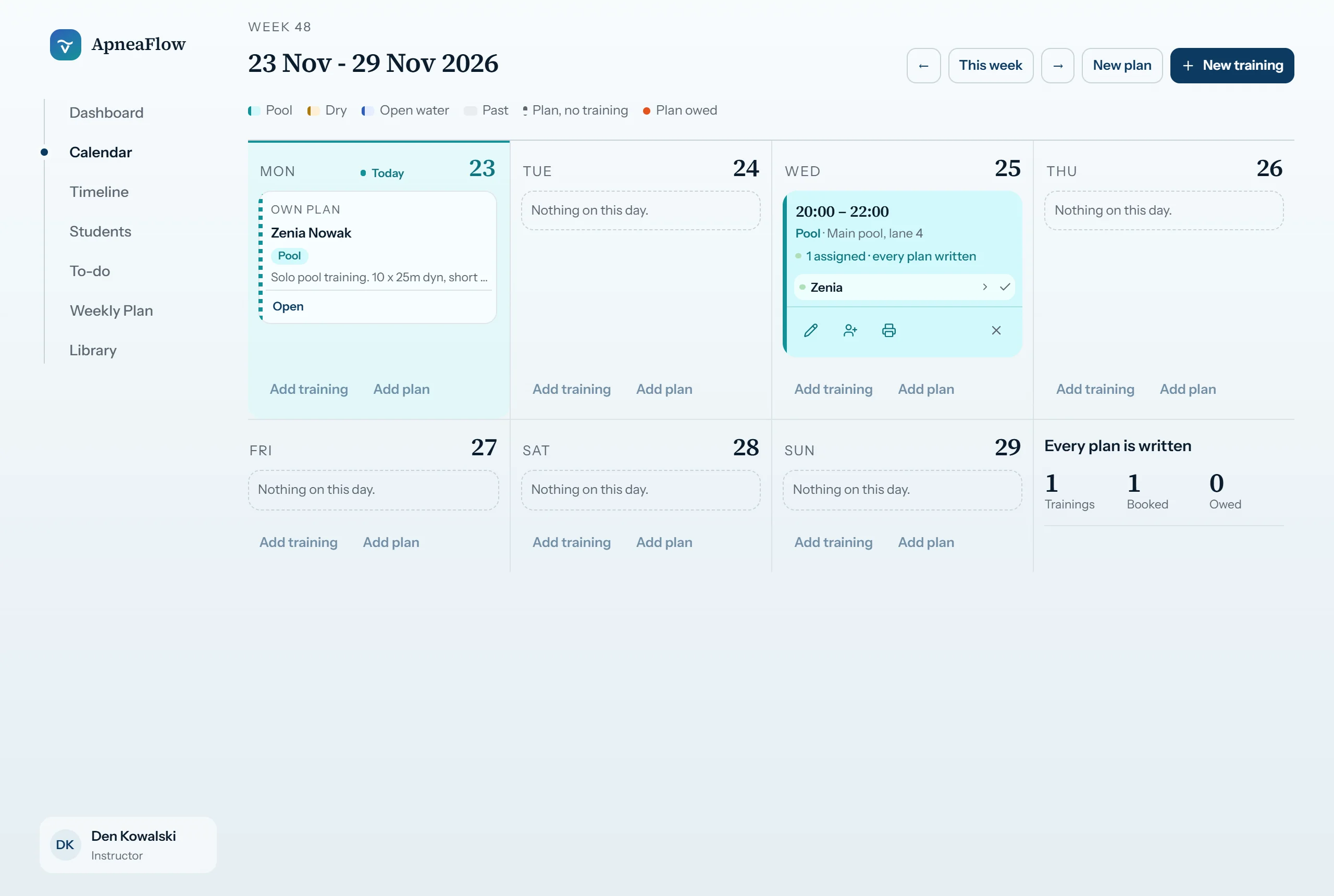
Creating a training
- Select Add training on a day, or New training at the top.
- Choose the Training type (Pool, Dry or Open water), the Starts and Ends times, and optionally a Location.
- Select Create training.
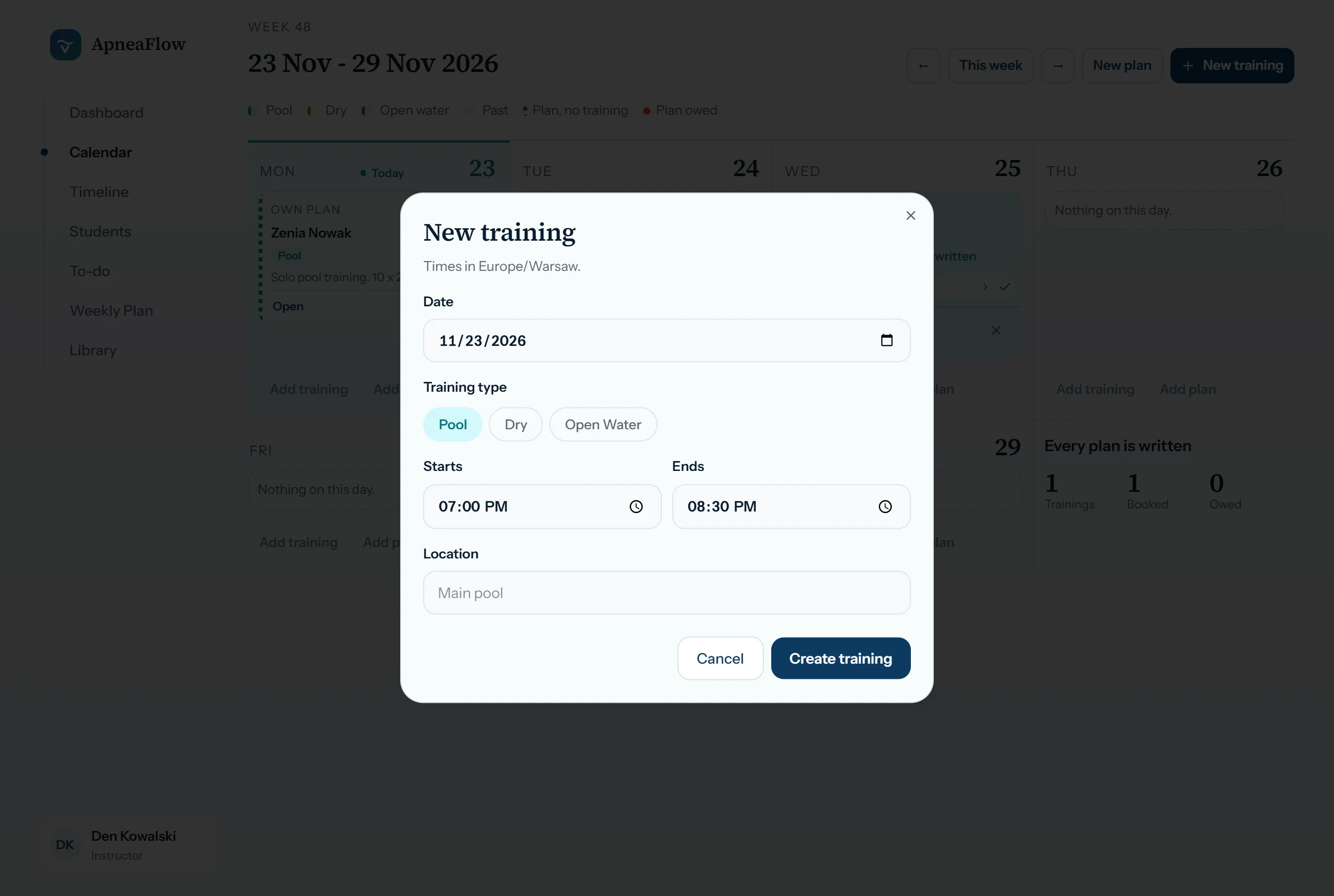
Times are in your own timezone, set under Settings → Timezone. Students elsewhere see the training at your local time, labelled with your timezone. Trainings have no capacity limit and no waiting list.
Each training shows its state at a glance. It is Open while nobody is booked, Booked once someone is, and Completed once it has started.
Filling a training
- In-person students book themselves, and you get a notification when they book or cancel. If a student cancels, the plan you wrote for them on that training is deleted, including a draft.
- To add someone yourself, open Assign or take off on the training and pick students. Online students are listed but can’t be added.
- Take off removes a student. If they already have a plan, the plan stays on that day.
- Once a training has started, its list of students is fixed.
Plans on a training
Each booked student has their own row. Write plan opens the editor for that student. Afterwards the row offers Edit plan, and Clear deletes the plan. Deleting asks first.
Changing or cancelling a training
- Edit opens the same form, so you can change the type, date, times or location, even after the training has started.
- Cancel training asks first and tells you how many students will lose their booking. Bookings are removed, but any plans stay on their dates.
To-do
To-do lists the plans you still owe, soonest training first. Comments are always optional, so they never show up here. Your Dashboard shows the same count.
Instructors: your students
Students lists all your students. Each row shows the last 12 weeks of that student’s training at a glance. Search by name, or select a row to open the student’s profile.
The student profile
- Next together shows your next training with the student and whether their plan is written. Write plan opens the editor.
- Trainings ahead lists your trainings in the next 5 days and whether the student is on each one. Assign them or Take off from here; it does the same as the calendar.
- The plan history covers every plan between the two of you. Filter it by All, By you or Self-directed (plans the student logged on their own). Expand a plan to read its Feedback and write your Comment. Show older loads earlier plans.
- Export plans downloads that history as a plain-text file.
- Coaching switches between In person and Online. See In person or online? above.
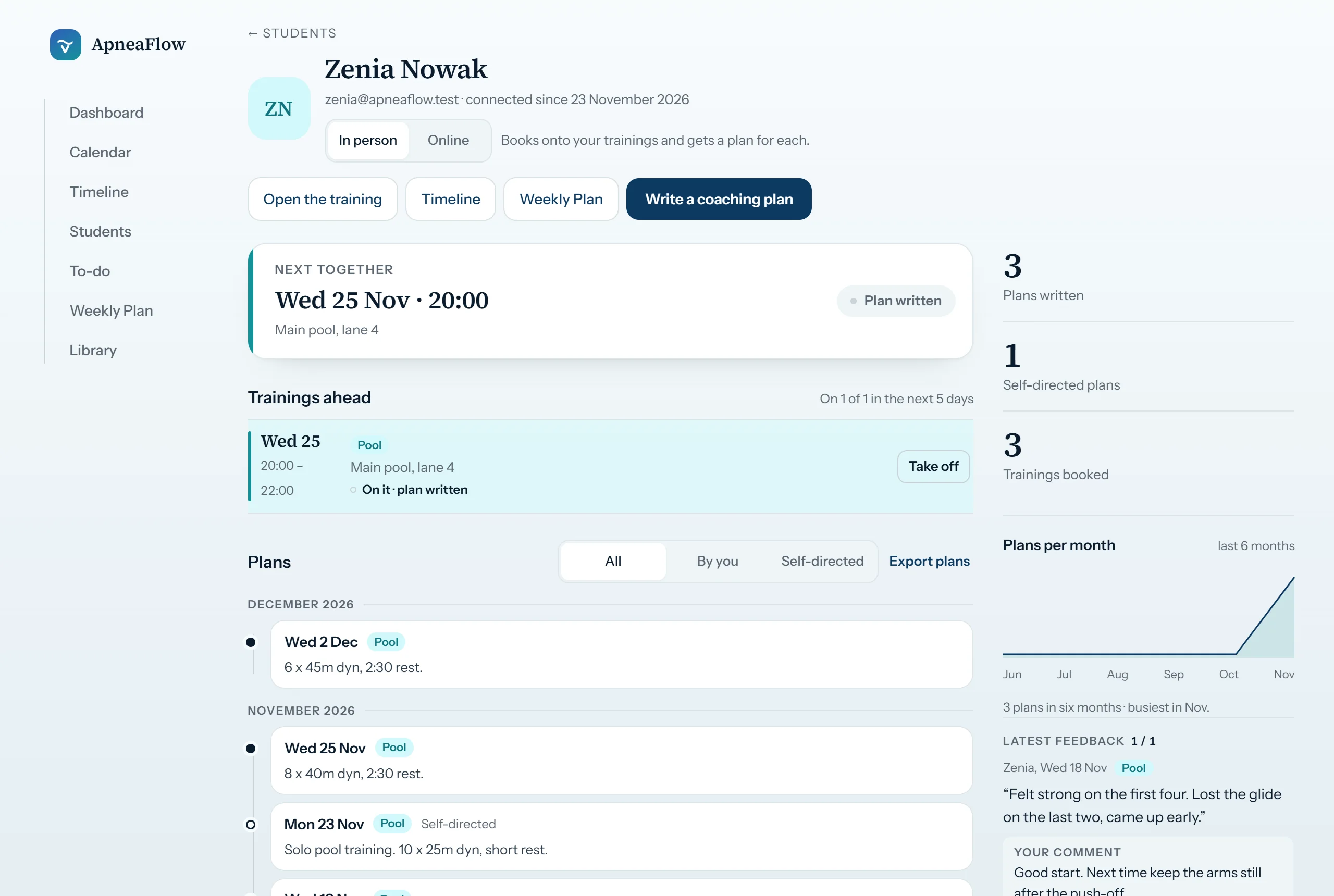
Online students have no Next together or Trainings ahead, because they don’t join trainings.
Latest feedback on the profile shows the student’s 10 most recent feedback notes, one at a time, newest first. Swipe or use the arrows to move between them. From each note you can add a Comment if there isn’t one yet, or select Open plan. The Timeline and Weekly Plan buttons at the top open this student’s Timeline and weekly checklist.
Comments
A Comment is optional, and nothing reminds you to write one. A student is notified the first time you comment on a plan. Editing the comment later doesn’t notify them again.
Removing a student
Remove from your students is at the bottom of the profile. The student loses the connection, and the plans you wrote stay with you. Any training they already booked with you stays booked, so nobody is dropped from a session they planned to attend. After that they keep a summary of each past training (date and type) and their own Feedback. Your plans and Comments stay with you. You also lose access to their Timeline, including personal bests and videos you added. Those stay with the student.
Instructors: Weekly Plan
A Weekly Plan is a short checklist you set for one student for one week, Monday to Sunday: homework between trainings, such as a morning stretch or a CO₂ walk. It works for in-person and online students, and it is separate from plans. You can see what the student has ticked, but only the student can tick.
Setting a list
- Open Weekly Plan in the menu, or the Weekly Plan link on a student’s row or profile.
- Pick the student on the left. Each name shows how many tasks are done, for example 1/2.
- Select Start empty, or Start from last week’s list to repeat last week’s tasks, all unticked.
- Type a task and press Enter. A list holds up to 30 tasks of up to 120 characters each.
- Optionally, write a Note explaining why you chose these tasks.
- Select Send to and the student’s name.
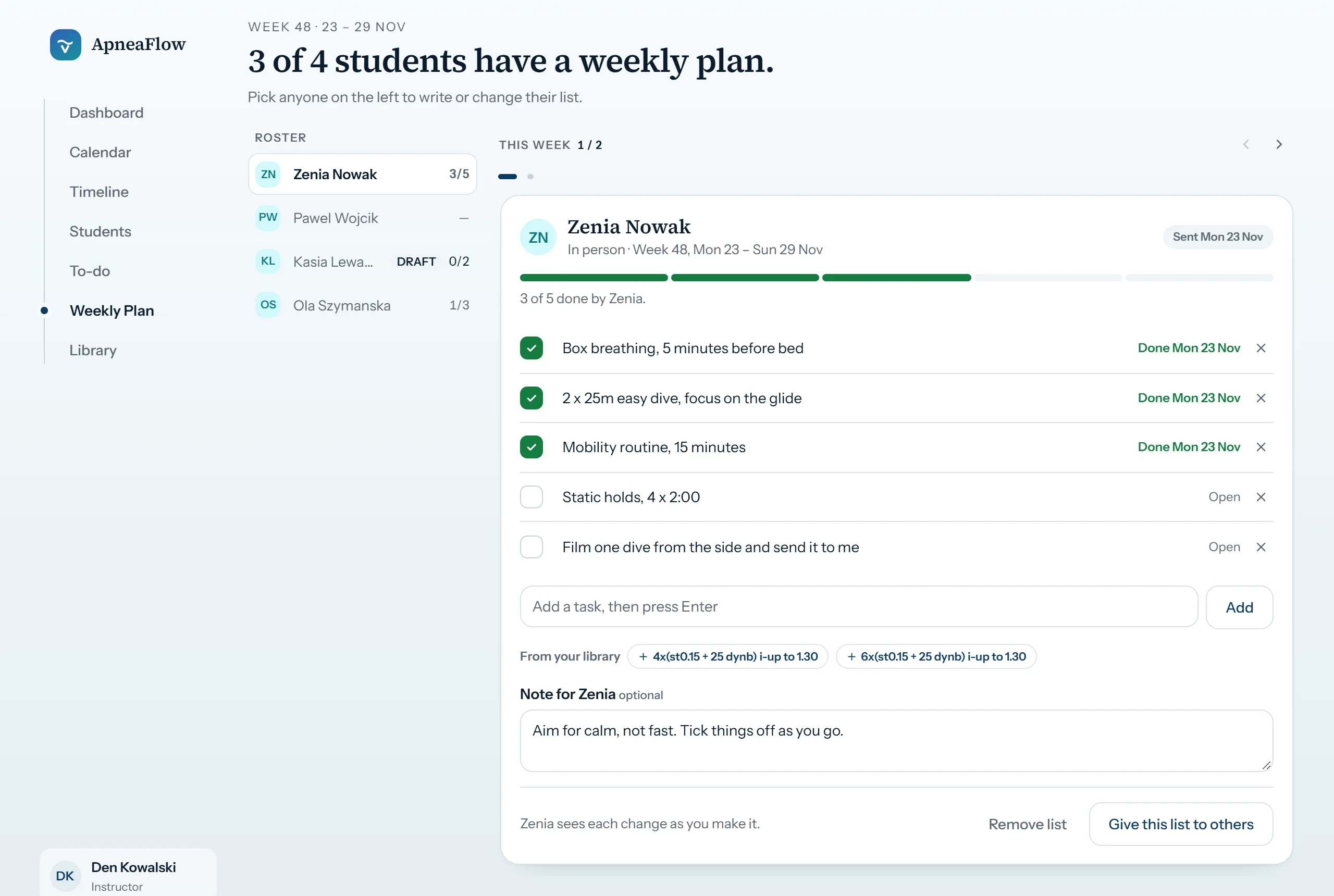
Until you send it, the list is a draft that only you can see. The student gets one notification when you send it. After that, your edits reach them straight away and don’t notify them again.
Adding from your library
Under From your library, select a task to add it. The same task can be added more than once. You are offered up to six single-line tasks tagged dry, sta or static, because a Weekly Plan is work away from the water. Unlike in a plan, the task’s description comes along, and both of you can see it.
Giving a list to other students
Select Give this list to others, tick the students, and send. Each one gets a fresh, unticked copy straight away, and a notification.
If a student already has a list for that week, the copy replaces it. Anything they ticked and any feedback they left on it are lost, and the panel warns you first.
Removing tasks or a whole list
- The × next to a task removes it. If the student has already ticked it, you are asked first.
- Remove list deletes the whole list, draft or sent, after asking. The student isn’t notified.
Reading back
When a week ends, its open tasks stay unticked and nothing moves to the next week. Earlier weeks sit in a carousel next to the current one: up to 11 earlier weeks that had tasks, read-only. Each shows which day every task was done, or Not done, plus any feedback the student left on the list. Nothing notifies you about feedback, and it never appears in your To-do.
If you remove a student, they lose access to your lists and you keep them. If you reconnect, you both see them again.
Students can also keep a list of their own for the week. You don’t see it, and it doesn’t count on your roster.
Timeline, personal bests and videos
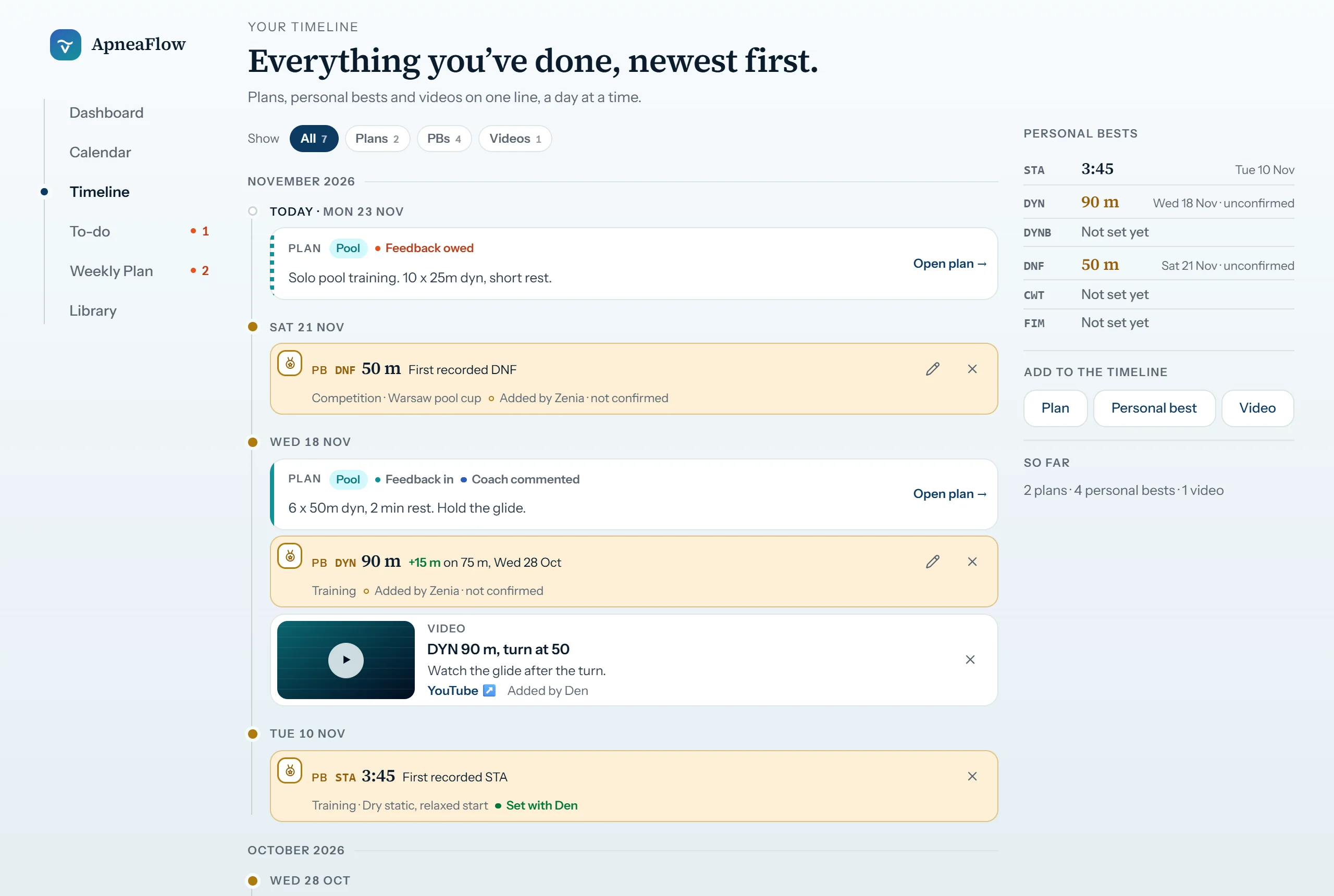
Timeline puts one diver’s season on one line, newest first, a day at a time: each day’s plan, any personal best set and any video of it. Students see their own. Instructors pick one of their students or All students, or open it with Timeline on a student’s profile.
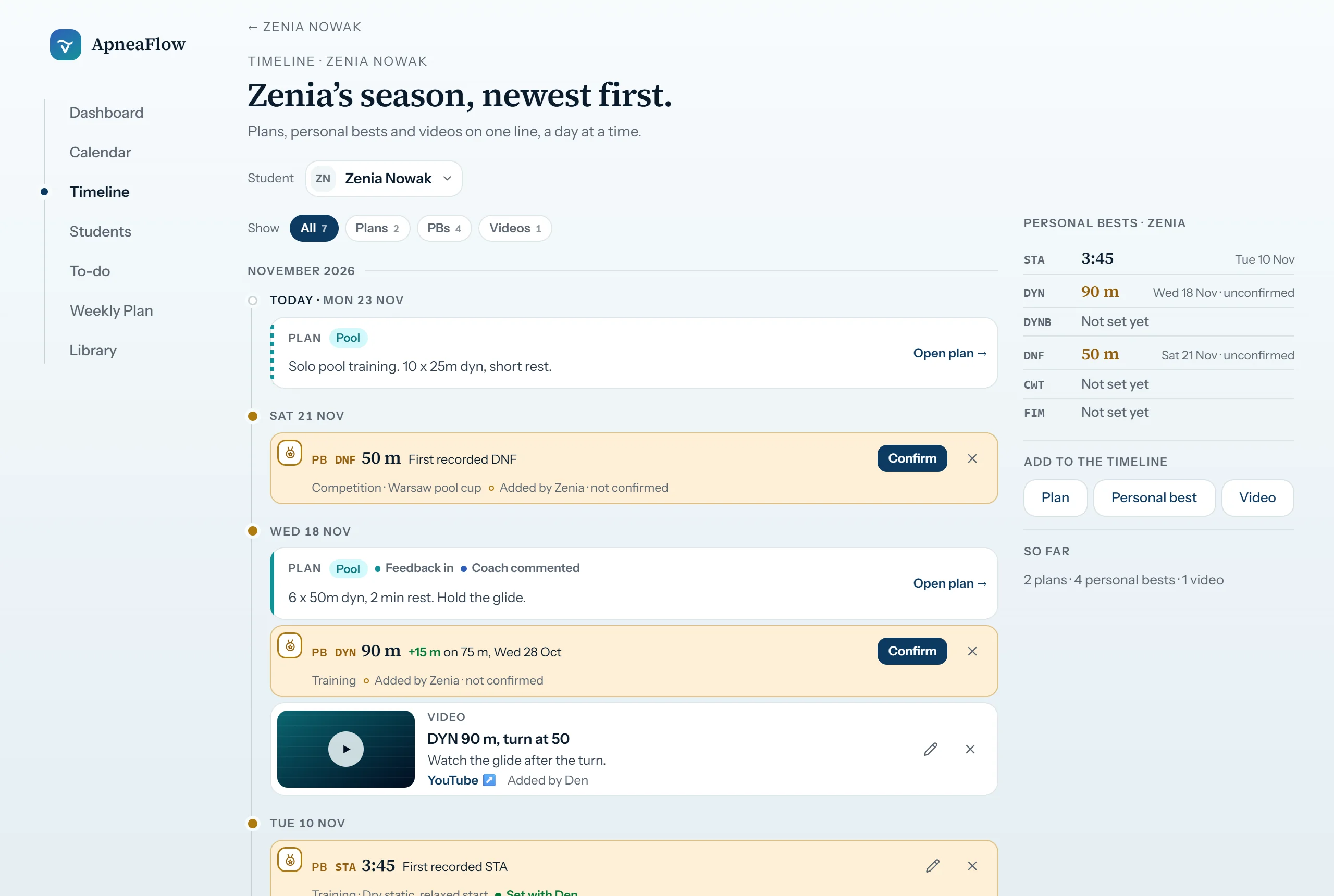
- Filter by All, Plans, PBs or Videos.
- Plans appear up to today. Drafts never appear. Open plan takes you to the plan.
- With one person picked, the right column shows their current best in each discipline. With All students, it shows Latest records across your students.
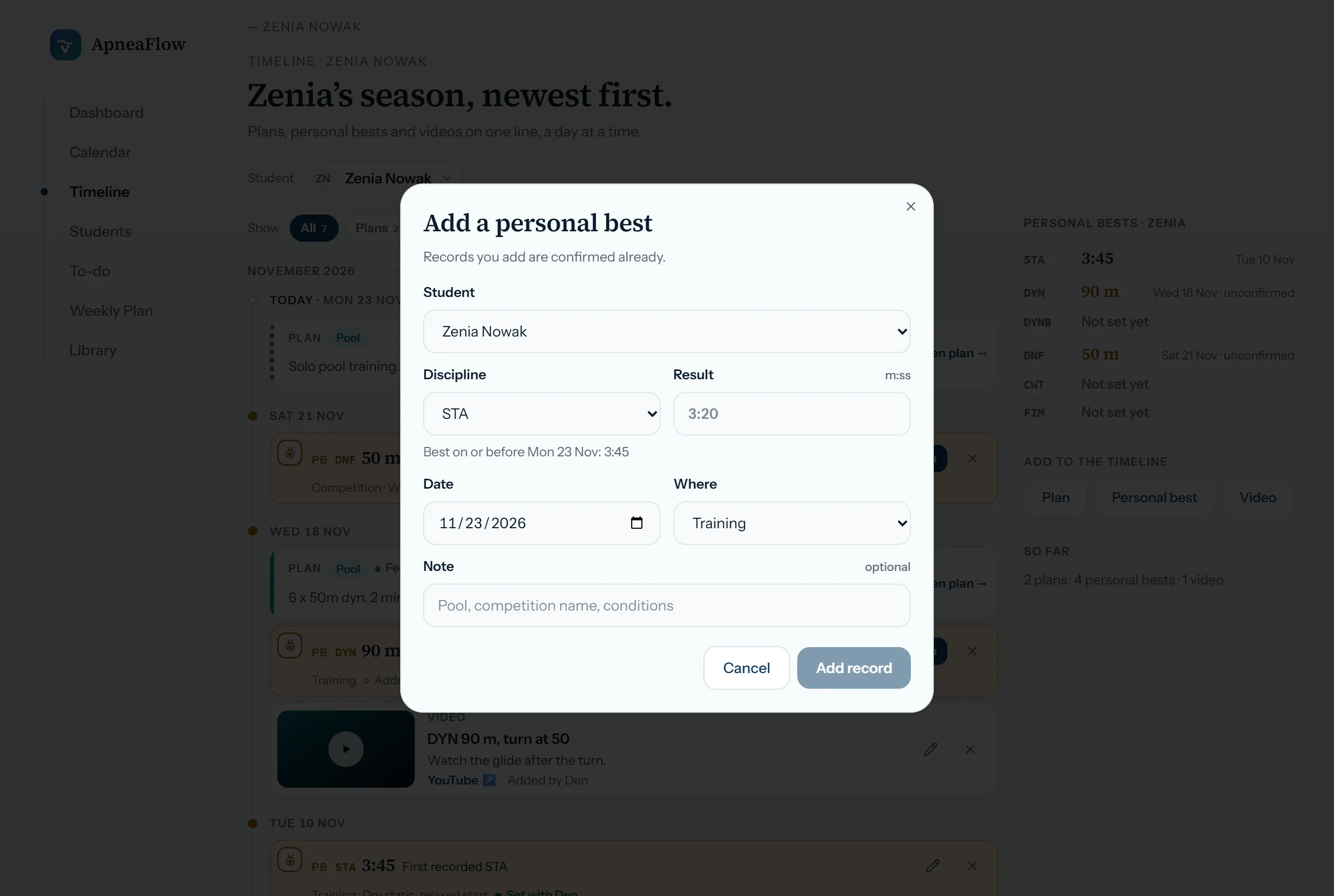
Adding a personal best
- Under Add to the timeline, select Personal best. Instructors pick the student.
- Pick the discipline: STA, DYN, DYNB, DNF, CWT or FIM.
- Enter the result: m:ss for STA, metres for the rest. Pick the date; it can’t be in the future.
- Under Where, pick Training, Self-directed or Competition, and add a note if you like, such as the competition’s name.
- Select Add record.
A personal best has to beat every earlier record in its discipline and stay below any later one. The form tells you as you type, and won’t save until the result fits.
A best a student adds shows as not confirmed until one of their instructors selects Confirm. A best an instructor adds is confirmed at once. If a student later changes the discipline, result or date, it goes back for confirmation. Changing only the note or Where keeps it confirmed.
Adding a video
Select Video, paste the link, give it a title and the date it was recorded, and add a note if you like. Then select Add video. The link must be https on YouTube, Vimeo, Instagram or Google Drive. ApneaFlow keeps only the link: the video stays where it is hosted, and anyone who can open the link can watch it.
Who can change what
| Action |
Student |
Instructor |
| See a timeline |
Their own |
Each connected student’s |
| Add a personal best or video |
For themselves |
For a connected student |
| Edit |
What they added |
What they added, while still connected |
| Delete |
Anything on their own timeline |
What they added, and a student’s personal best that isn’t confirmed yet |
| Confirm a personal best |
Not available |
A connected student’s |
Personal bests and videos belong to the student. If an instructor and a student disconnect, the instructor loses access to the student’s timeline, including what they added.
When a student adds a personal best, their instructors get a notification. When an instructor adds or confirms one, the student gets one. Videos, edits and deletes notify nobody. Personal bests and videos aren’t part of the plan download.
Students: training with ApneaFlow
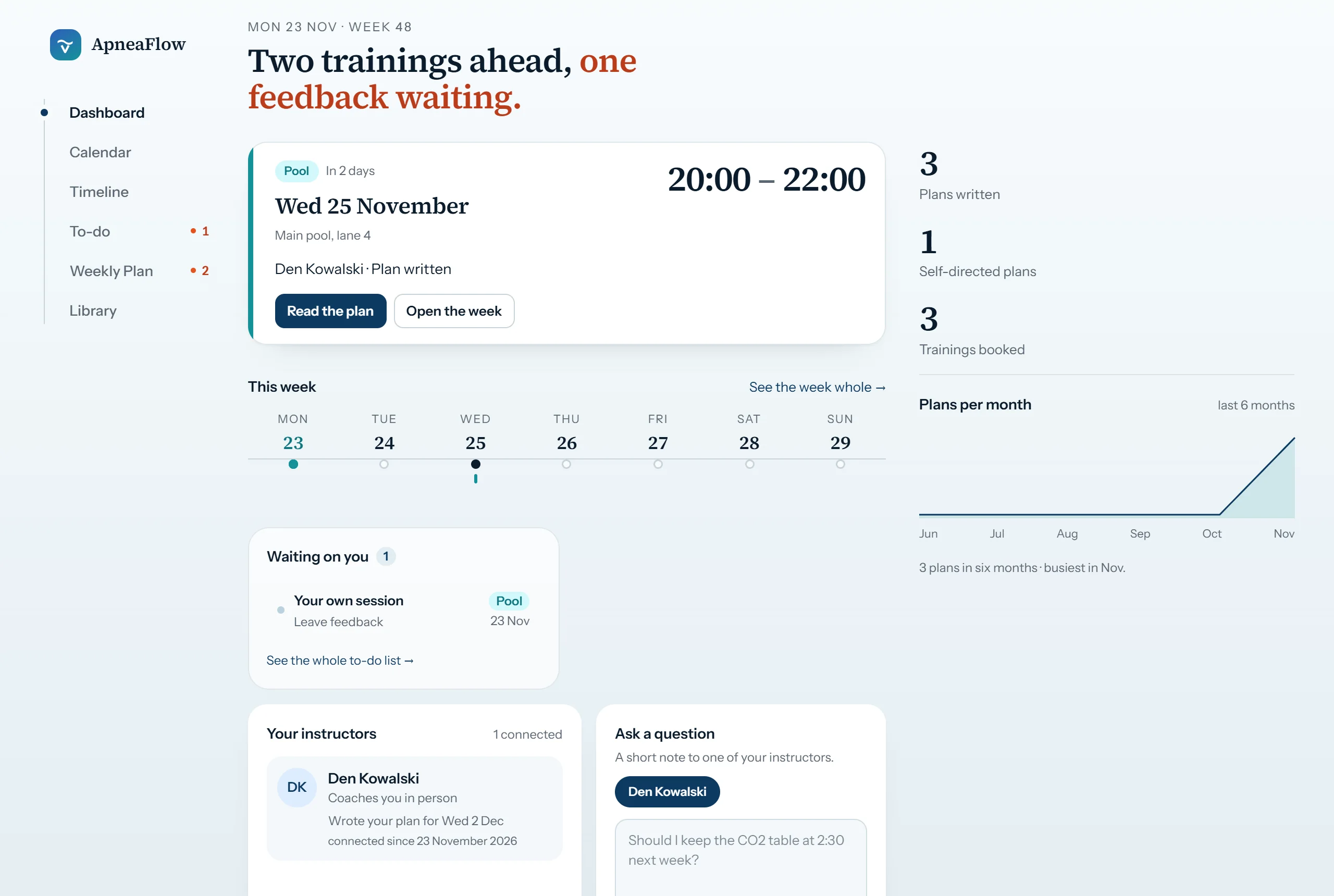
A week with an instructor runs like this. You book a training, read your plan, train, then leave Feedback. Your instructor may reply with a Comment.
Accepting an invite
Open the link in your invite email. If you’re new, set a password and accept the privacy policy. If you already have an account, sign in. The link works only once and expires after a short time. If it has expired, ask your instructor to send a new one.
Booking a training
- Open Calendar. Your instructors’ trainings appear on their days, in the instructor’s local time.
- Select Book on the training you want.
- To pull out, select Cancel booking.
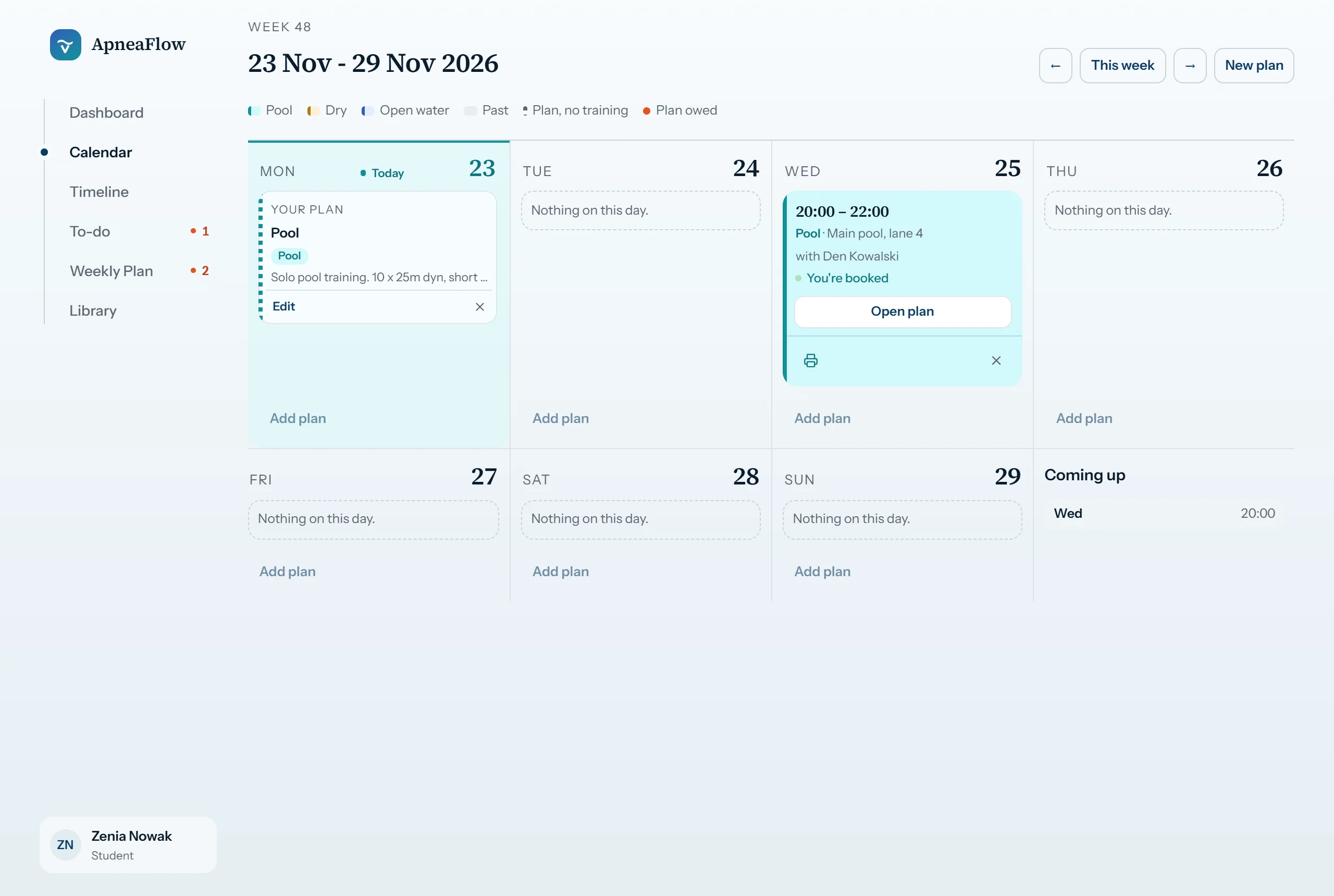
You can book or cancel at any time before the training starts. Cancelling also deletes the plan your instructor wrote for you on that training. A plan you wrote yourself stays. Your instructor can also add you to a training or take you off one, and you’ll see a notification when they do. If your instructor works with you online, you won’t see their trainings. You get plans and Weekly Plans.
Reading your plan
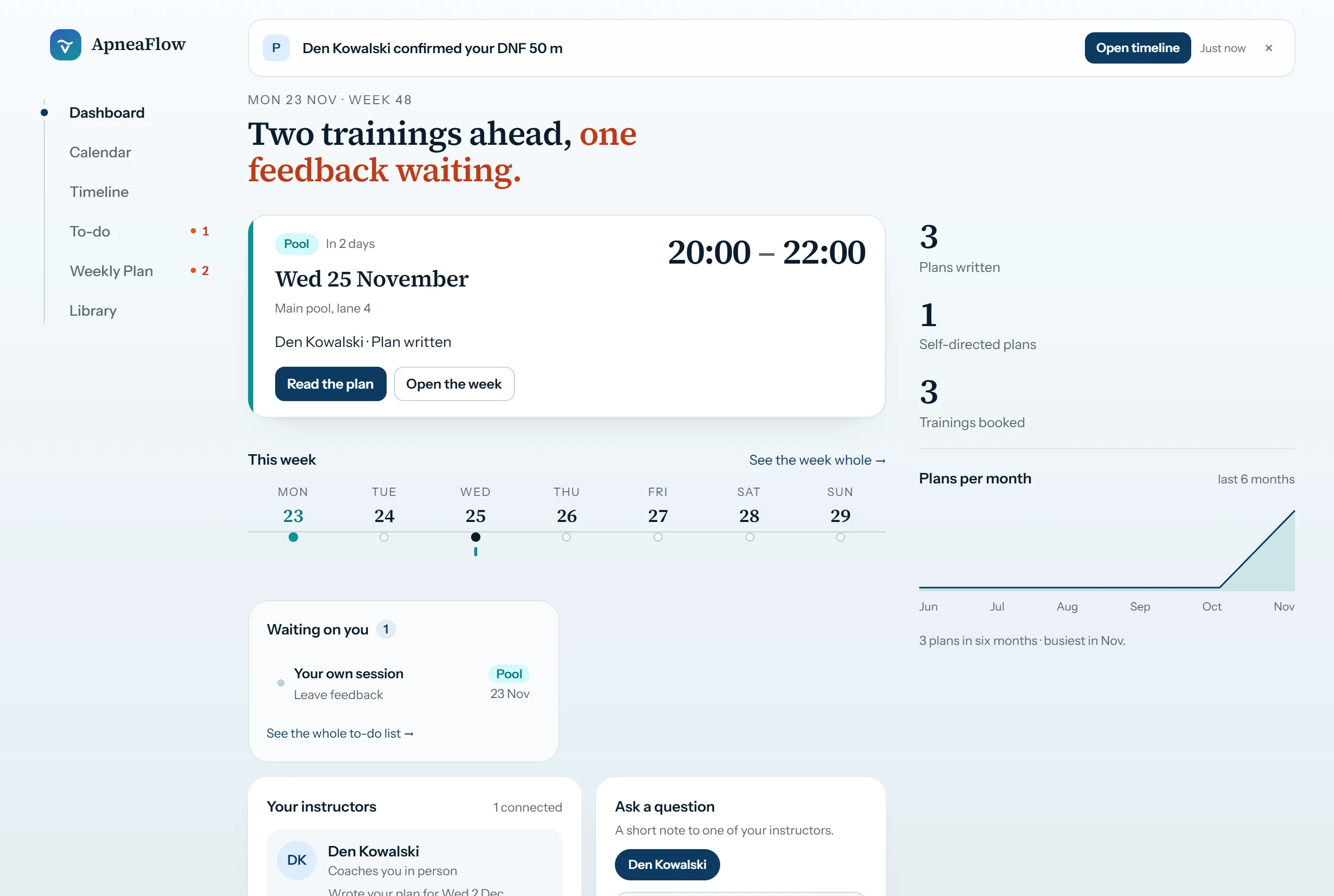
When your instructor writes a plan, you get a notification. Open it from the training (Open plan), from your Dashboard, or from Timeline. Print my plan gives you a printable copy to take to the pool. Print all, with the plans for everyone on the training, is available from the day before the training through the day itself, once a plan has been written.
Leaving Feedback
After each training, write a short note about how it went, for example struggled with the 45 m set, felt strong on the warm-up. Open the plan, write in Feedback, and select Save feedback (Post feedback on the plan’s own page). You get a reminder if you haven’t written it within a day. Your Dashboard and the To-do show every plan still waiting for your feedback.
Logging your own training
You can log sessions you do on your own, with or without an instructor. Select New plan (or Add plan on a day in the Calendar), fill in Main and any other parts, and save. Self-directed plans appear on your Timeline next to your instructor’s plans, and your connected instructors can read them.
Your timeline
Timeline shows your season day by day, newest first: your plans, personal bests and video links. Open plan shows a plan with your Feedback and your instructor’s Comment. Your history is yours: if you stop training with an instructor, you keep the date and type of each training and all of your own Feedback.
Asking your instructor a question
On the Dashboard, use Ask a question. Pick the instructor under Send to, type up to 2,000 characters, and select Send. It arrives as an email, and their reply comes back to your inbox. You can send up to 5 questions an hour.
Your Weekly Plan
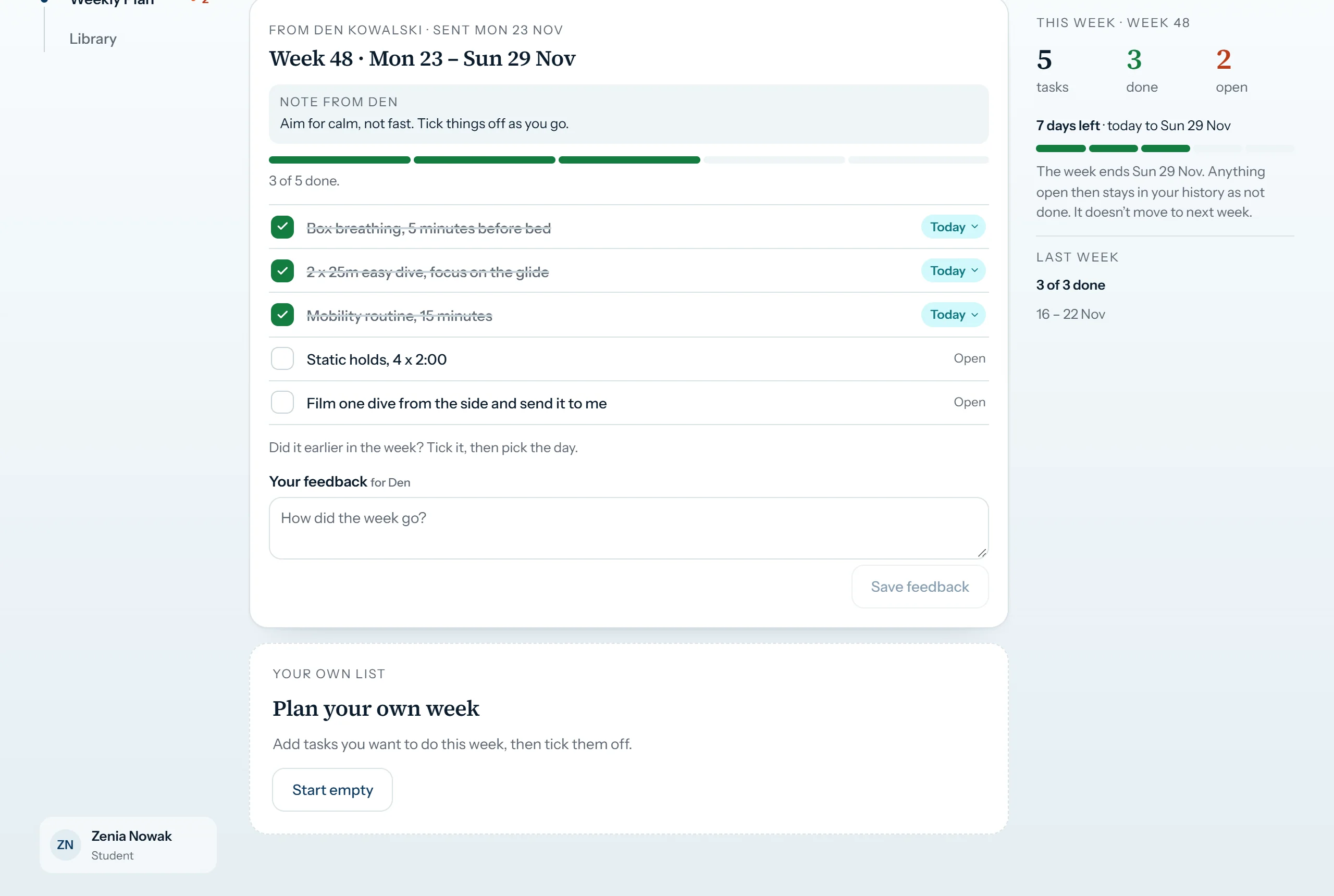
Your instructor can set you a short checklist for the week, Monday to Sunday, for things to do between trainings. You get a notification when a list arrives. The number next to Weekly Plan in the menu shows how many tasks are still open. On a phone, it is a tab in the bottom bar.
- Open Weekly Plan. If two instructors have each set you a list, you see one card for each.
- Tick a task when it is done. The day is set to today.
- If you did it earlier in the week, select the day shown next to the task, then pick the right one under Done on. You can’t pick a day that is still ahead.
- To undo, untick the task.
You can only tick tasks in the current week. Tasks left open on Sunday stay in your history as Not done and don’t move to next week.
Under Your feedback, you can tell your instructor how the week went, then select Save feedback. You can do this at any time, including for earlier weeks, and change it later. Your instructor reads it there but isn’t notified.
Earlier weeks are in a carousel next to this week: up to 11 earlier weeks that had tasks. Apart from feedback, they are read-only. Weekly Plans aren’t included in your plan download.
Your own list
You can also plan your own week, with or without an instructor. Your own list sits below any list from an instructor.
- Open Weekly Plan and, under Your own list, select Start empty, or Start from last week’s list to repeat last week’s tasks, all unticked.
- Type a task and press Enter, or pick one from your own Library. A list holds up to 30 tasks of up to 120 characters each.
- Tick tasks as you do them, and set the day as you would on an instructor’s list. Select a task’s text to rename it, or × to remove it.
Your own list is live as soon as you start it. It has no note or feedback, and nobody is notified about it. Your instructors don’t see it. Remove list deletes it after asking. Once the week is over it is read-only, in the carousel with your other weeks.
Account settings
Open Settings from your avatar menu. It has four pages.
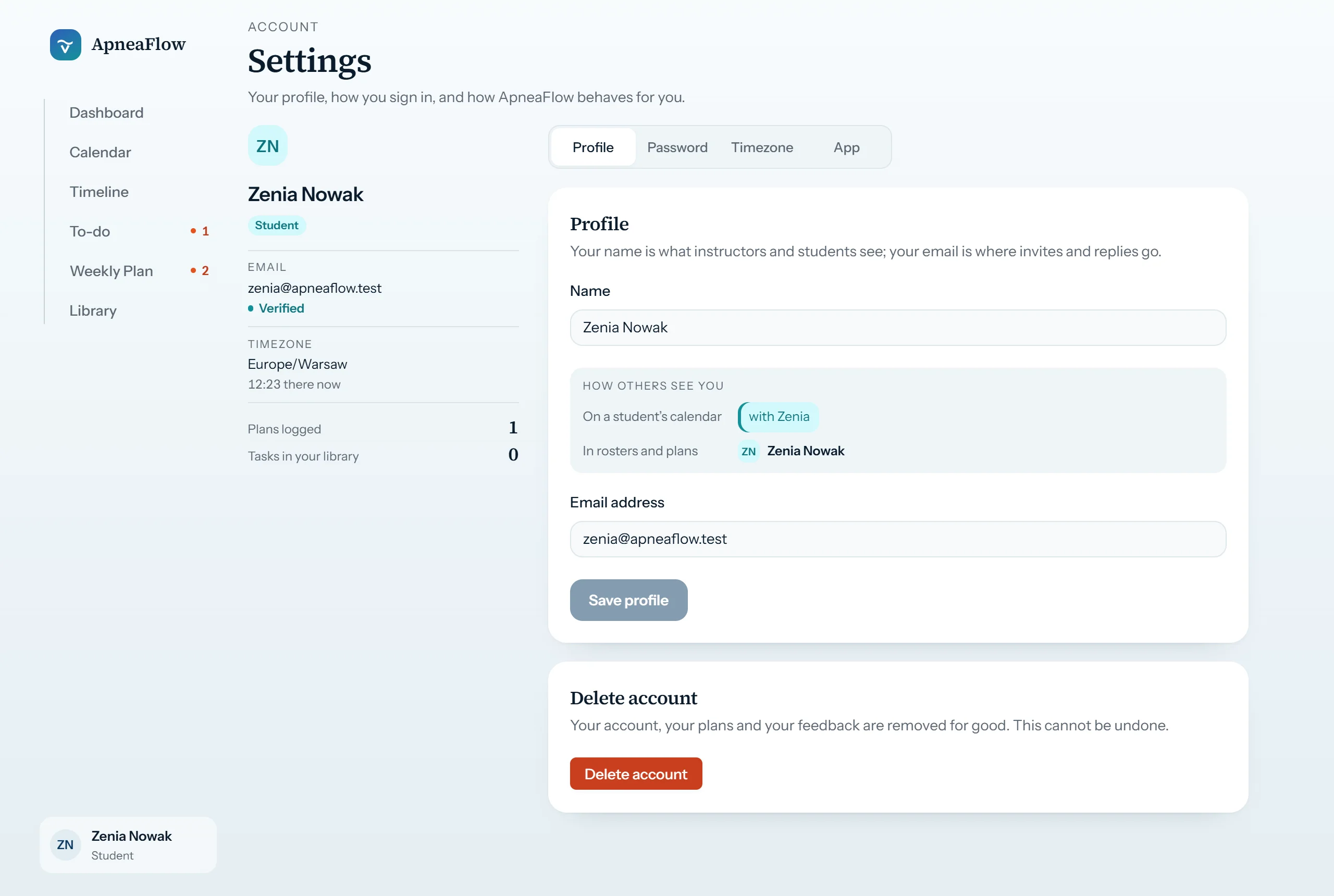
| Page |
What you can do |
| Profile |
Change your name (what instructors and students see) and your email address (where invites and replies go). Delete your account. |
| Password |
Change your password. A checklist shows when the new password meets the rules. Changing it signs you out on your other devices. |
| Timezone |
Set your timezone. Search for a city or use your device’s timezone. Instructors: new trainings are scheduled in this timezone. |
| App |
See which notifications you get. Students: Download my plans (.txt) saves every plan you have been given or written, with your Feedback and your instructors’ Comments. |
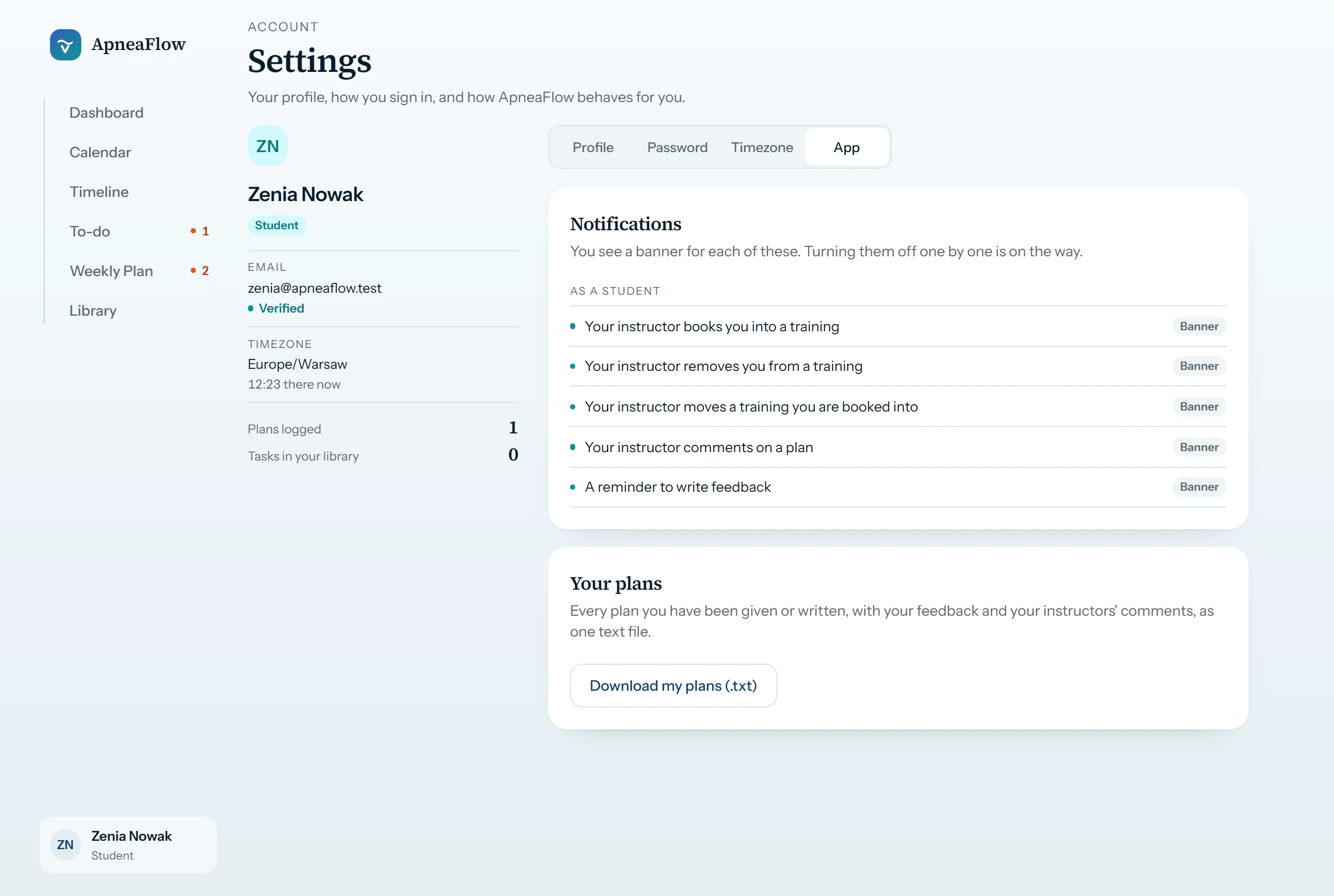
Notifications appear as banners inside the app and stay until you close them. You can’t turn individual notifications off yet.
Delete account removes your account, your plans and your Feedback for good. It can’t be undone, so download your plans first if you want to keep them.
FAQ and help
I forgot my password. On the login page, select Forgot your password? and enter your email address. We send you a link to set a new one. Resetting it signs you out on all your devices.
I didn’t get my confirmation or invite email. Check your spam folder. For a confirmation email, sign in and select Resend verification email. For an invite, ask your instructor to send it again.
Why can’t I see my instructor’s trainings? Your instructor works with you online, so you get plans and Weekly Plans. Ask them to switch you to in person if you want to book their sessions.
Why can’t I book or cancel a training? Bookings close when the training starts.
Why did my plan disappear after I cancelled a booking? Cancelling deletes the plan your instructor wrote for you on that training. If your instructor takes you off instead, the plan stays on that day.
Do unfinished Weekly Plan tasks carry over? No. They stay in that week as Not done. Your instructor can repeat them with Start from last week’s list.
Where did the Plans page go? Timeline replaced it. It shows every plan day by day, with personal bests and videos beside them. Plans still to write or to give feedback on are on To-do.
Why does my personal best say not confirmed? A best you add waits for one of your instructors to confirm it. If you change its discipline, result or date, it goes back for confirmation.
Why won’t my personal best save? It has to beat your best in that discipline on or before its date, and stay below any later record. The form names the record it clashes with; edit or delete that one first.
Can two students share one plan? No. Every plan belongs to one student. A plan written on a training for several students becomes a separate copy for each.
Can I train with more than one instructor? Yes. Accept each instructor’s invite. Each one can work with you in person or online, separately.
What happens to my data if I leave an instructor? You keep the date and type of each training and all of your Feedback. The plans and Comments your instructor wrote stay with them.
Still stuck? Use the Contact page and pick a topic: Using the app, Instructor access, Privacy request or Something else. We reply by email.